
App Development
Reefwing Robotics: ESP-32 Programming

The ESP32 is a dual core 32 bit microcontroller featuring WiFi and Bluetooth, and is able to be programmed with the Arduino IDE through an ESP32 add on. Note that not all libraries or functions that work with the ESP8266 or Arduino are yet functional on this new board.
It utilises the Xtensa® dual-core 32-bit LX6 microprocessor running at 240MHz, which is a step up from the ESP8266, while having similar power consumption.
The ESP32 ESP32 can also interface with other systems to provide Wi-Fi and Bluetooth functionality through its SPI / SDIO or I2C / UART interfaces. The ESP32 module comes preloaded with a ROM image of the AT command set, just like the ESP8266 did. If you want to waste 95% of this chip’s potential by using it as a glorified serial-to-WiFi modem, you are good to go!
If you are interested in IoT, I have released a number of new tutorials on using and programming the ESP-32, over on our sister site Reefwing Robotics.
The ESP32 makes for a great low power IoT sensor hub and is a more capable alternative to the Arduino. The caveat is that there is a bit more mucking around to get it to work. There is also some complexity in getting a dual-core micro controller to play along with a real-time operating system.
In addition to programming the ESP-32 in C, you can also use MicroPython. MicroPython is a complete development environment that runs on the ESP32 processor.
The tutorials available include:
Development – sell the dream…

How to make a game like Flappy Bird in Swift

I just published my first video game tutorial on #skillshare – “How to make a game like Flappy Bird in Swift.” Check it out!
This was a lot harder than I was expecting – it took me 3 days to shoot 3 minutes of video, do the voice overs and edit in After Effects. I think I’m now ready to shoot a feature film!
Some Pointers…

Drone Explorer – new iOS App

Check out our new FREE app – Drone Explorer!!! A blatant Flappy Bird rip off, however it was released as part of an upcoming video tutorial on how you can build your own version of the game. At its peak the Flappy Bird app was earning $50k per day! Feel free to download my version and give it a 5 star review! Here is the link.
More details on the video tutorial will be available SOON.
TLA’s…

Visual Aircraft Forecasts – NEW iOS App from Reefwing Software
Sick of trying to decode unintelligible aviation weather information? If so you need our new app!
You can view a preview of the app in use.
Visual Aircraft Forecasts (VAF) for Australia reduces the complexity of aviation weather forecasting by providing graphical representations of the weather data provided by the various authorities.
Visual Aircraft Forecasts for Australia aggregates data from the Australian Bureau of Meteorology (BOM), National Oceanic and Atmospheric Administration (NOAA), International Civil Aviation Organization (ICAO) and the Open Weather Map organisation.
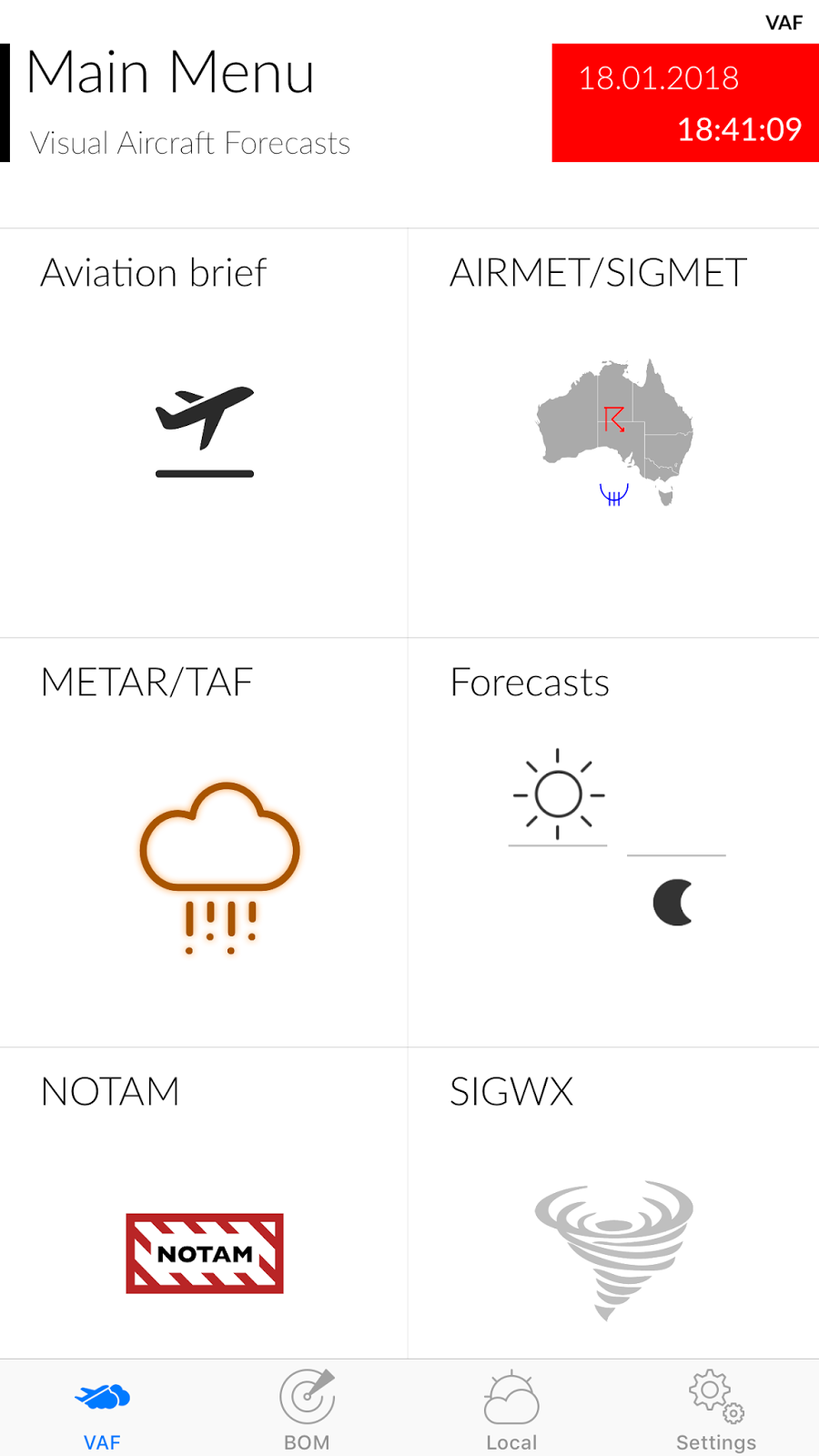
The VAF tab focusses on aviation specific information and includes:
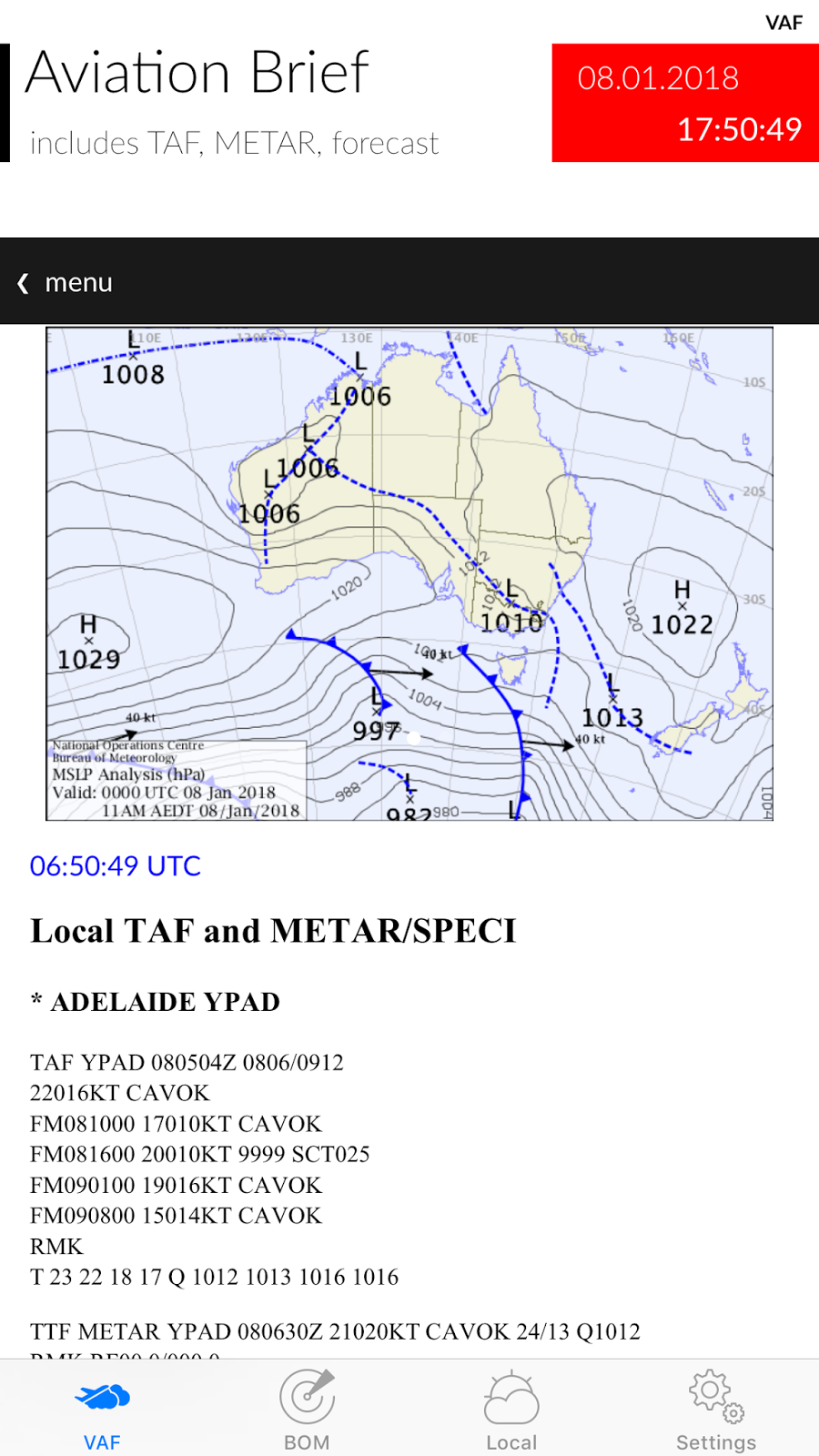
a) Aviation Briefs which are available for 10 regions in Australia. It is derived from the Aviation Weather Packages on the BOM web site.
b) AIRMET/SIGMET – The latest graphical and text based versions are provided (from the BOM). You can use two fingers to zoom in and out of the PDF’s on this screen.
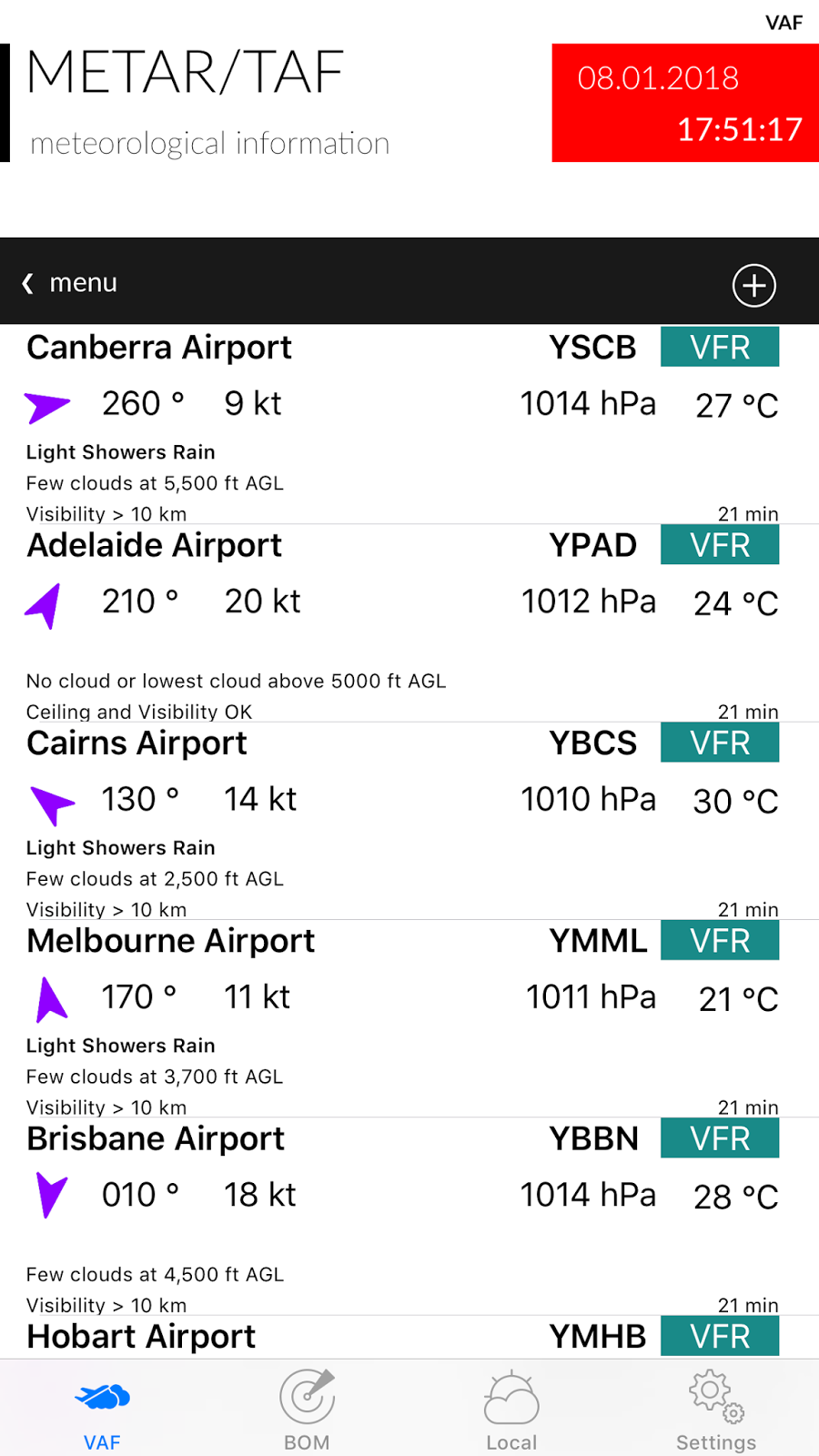
c) METAR/TAF – Are decoded for a selected list of airports. Display includes wind direction and speed, cloud cover, visibility, temperature and QNH. You can add additional airports using the + button (top right). To delete an airport, swipe left. In the Settings Tab you can select whether this data comes from BOM or NOAA (default is BOM). You get slightly different data depending on the source, but there are a lot more sites using BOM. Only the major airports are on NOAA but you also get Lat, Long, Elevation and Altimeter. Tap on a METAR to bring up the detailed version and to view the raw data.
d) Forecasts – these are the new Graphical Area Forecasts from BOM. You can use two fingers to zoom in and out on this screen as well.
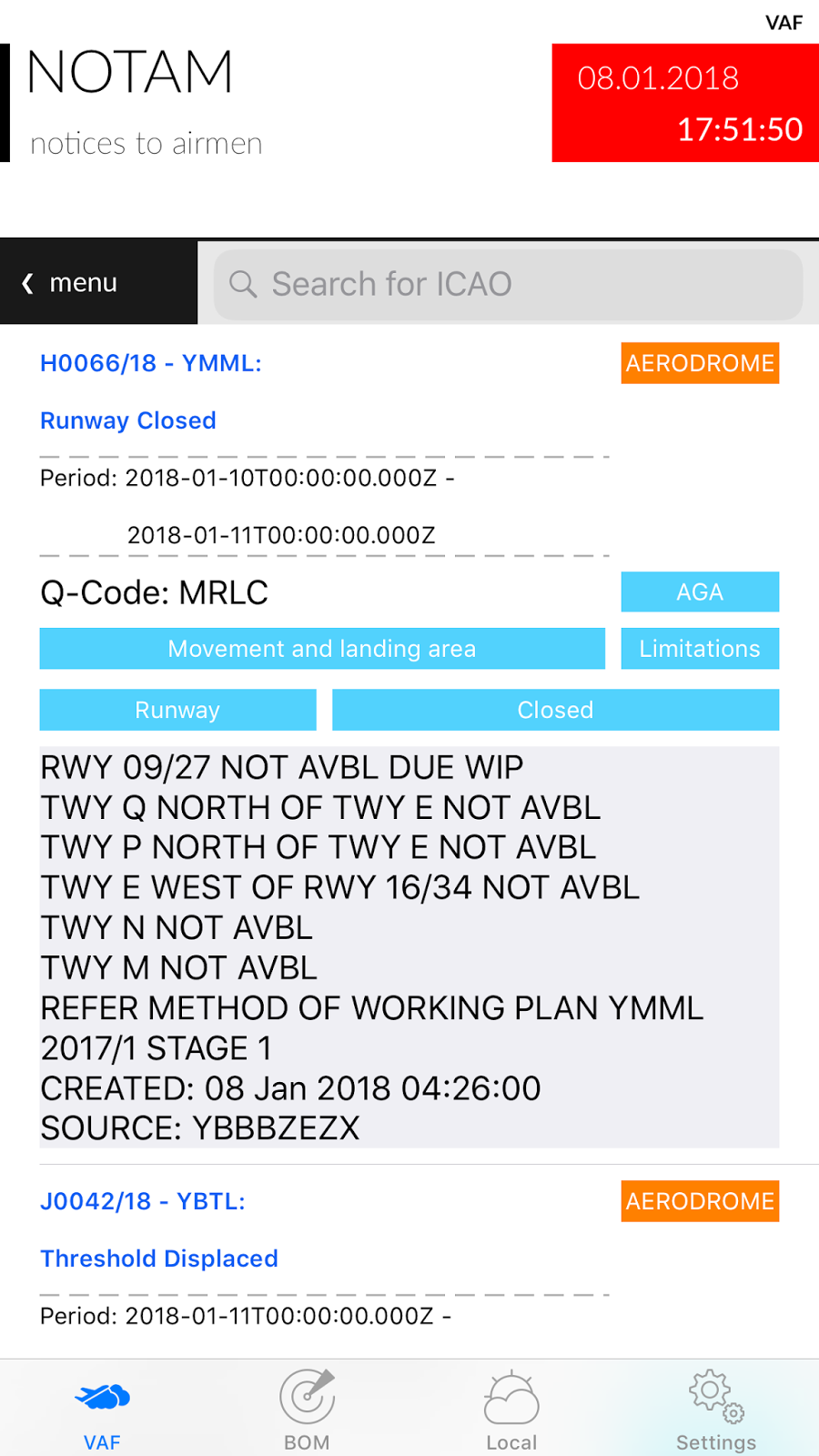
e) NOTAM – from the International Civil Aviation Organization (ICAO). NOTAMs are sorted by creation date. You can search for an airport using its ICAO code (e.g. YSSY for Sydney/Mascot Airport).
f) SIGWX – Significant Weather from the BOM. You can use two fingers to zoom in and out on this screen.
The BOM tab provides more generalised weather information, including:
a) Rain Radar – downloads an animation of recent rain radar information. Select the map of Australia in the menu bar to zoom in on a specific state.
b) Satellite Images – from the Himawari-8 weather satellite. Includes satellite notes from the BOM.
c) Observations – will provide an animated graphical display of the latest weather measurements from a list of 133 locations in Australia. Data shown includes weather, temperature, relative humidity, sunrise/sunset times, minimum and maximum temperatures and wind speed and direction. Drag the table up to show the forecast for that location and drag down to refresh the current data.
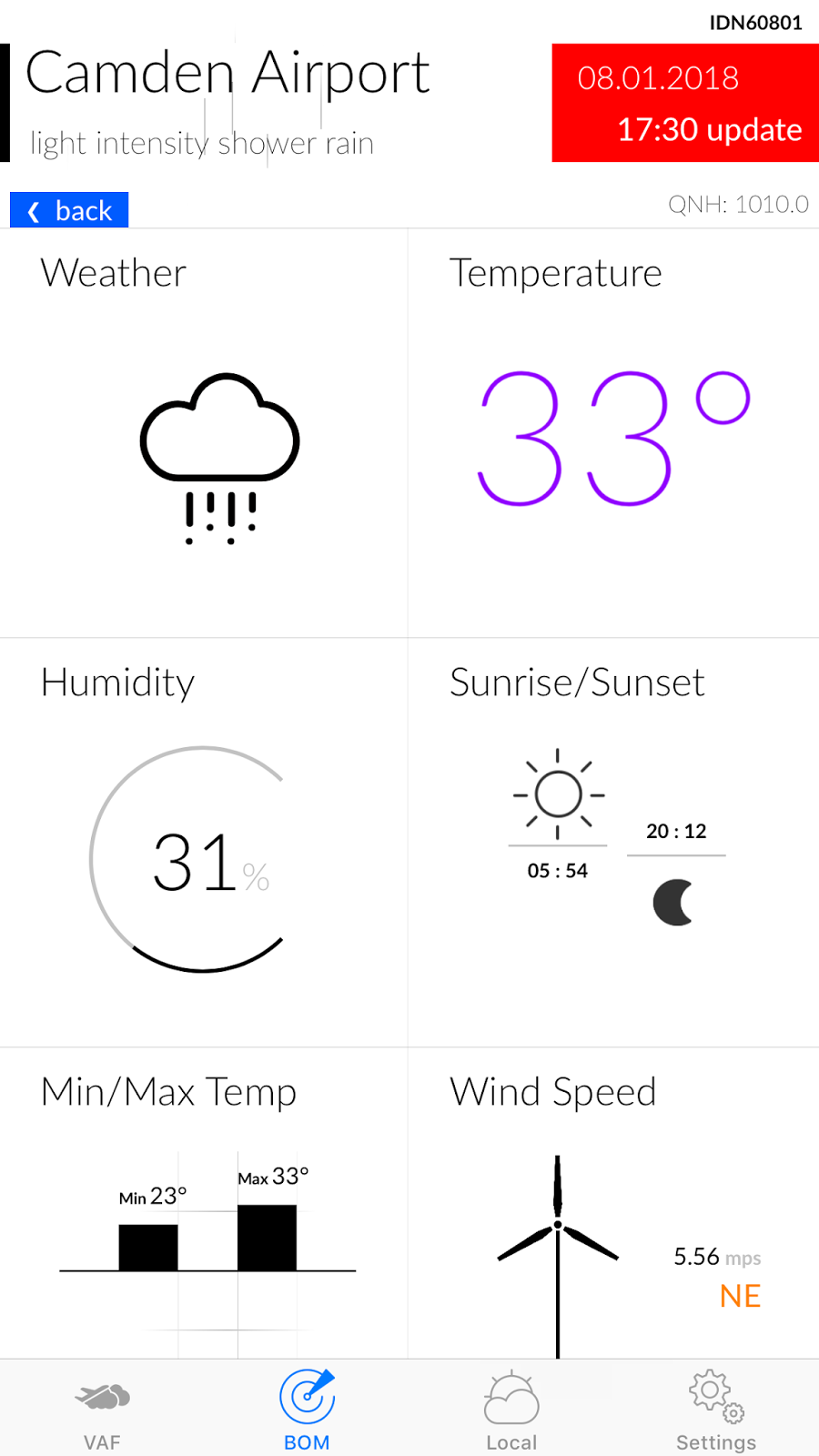
The Local tab provides information similar to Observations but for where ever you are at that moment. The first time you tap the Local Tab it will ask your permission to access location services. You need to accept this otherwise the app doesn’t know where you are and can not display the local weather.
The Settings tab allows you to select:
– whether UTC (Zulu) time is displayed on certain screens along with the local time.
– the METAR data source (BOM or NOAA).
– wind speed units (mps, kph or knots).
– displayed temperature units (°C or °F)
The Feedback button allows direct support from the Developer. Please use this for any bug reports or feature requests.
Note: Airservices Australia is the official provider of the Aeronautical Information Service, which includes the delivery of aviation meteorological products. Therefore, all information for the purpose of flight planning should be obtained from Airservices Australia.
Hashtag – iMessage Sticker Pack 16

A premium set of Hashtags and symbols.
There are 60 fantastic stickers, including:
#love
#yolo
#SHTF
#TGIF
#eyeroll
#facepalm
#selfie
#princess
#Bro
#mate
#sisters
#aus
#nz
#usa
#uk
#BFF
#cute
#hug
#fail
#xoxo
#TBA
…and many more!
Be the master of texting with a sticker which captures exactly what you want to say. Game Over Man!
AGILE Development 2…
